PDF-Kontoauszüge in Excel umwandeln – Kostenlos & Präzise
Der “Steuerzeit”-Albtraum: Ein Szenario aus der Praxis
Lernen Sie Sarah kennen. Sarah ist freiberufliche Grafikdesignerin und führt ihr eigenes Kleinunternehmen. Sie ist ausgezeichnet im Design, aber nicht so gut in der Buchhaltung.
Letzten Monat stand Sarah vor einer Krise. Es war Steuerzeit, und ihr Steuerberater schickte ihr eine dringende E-Mail:
“Sarah, ich benötige bis Freitag alle Ihre Geschäftsausgaben der letzten 12 Monate. Bitte senden Sie sie in einem Excel-Tabellenblatt oder CSV-Format, damit ich sie in QuickBooks importieren kann.”
Sarah geriet in Panik. Sie loggte sich in ihr Online-Banking (Chase und PayPal) ein, stieß aber auf ein häufiges Problem: Sie konnte ihre vergangenen Kontoauszüge nur als PDF-Dateien herunterladen. Sie versuchte, die PDF zu öffnen, die Transaktionstabelle zu markieren, sie zu kopieren und in Excel einzufügen. Das Ergebnis? Ein Desaster.
- Die Daten wurden in die Spalte “Beschreibung” eingefügt.
- Die Abhebungs- und Einzahlungsbeträge wurden in einer einzigen Zelle zusammengeführt.
- Das Layout war völlig zerstört.
Sarah rechnete aus, dass das erneute Abtippen von 12 Monaten Transaktionen Zeile für Zeile mindestens 15 Stunden dauern würde. Diese Zeit hatte sie nicht.
Genau dieses Problem löst unser Tool. Wenn Sie in Sarahs Situation sind – sei es für Steuern, einen Hypothekenantrag oder eine Visaprüfung – benötigen Sie eine Möglichkeit, PDF-Kontoauszüge in Excel umzuwandeln, ohne den manuellen Aufwand.
So können Sie das Problem in weniger als 2 Minuten lösen.
Warum PDFs großer Banken schwer zu konvertieren sind
Banken wie Chase, Wells Fargo, HSBC und Bank of America gestalten ihre PDFs für den Druck, nicht für die Datenbearbeitung. Sie verwenden oft komplexe Formatierungen, die Standard-PDF-Readern nicht als Zeilen und Spalten interpretieren können.
Wir haben unsere KI speziell auf die Layouts dieser großen Finanzinstitute trainiert, um eine pixelgenaue Datenextraktion zu gewährleisten.
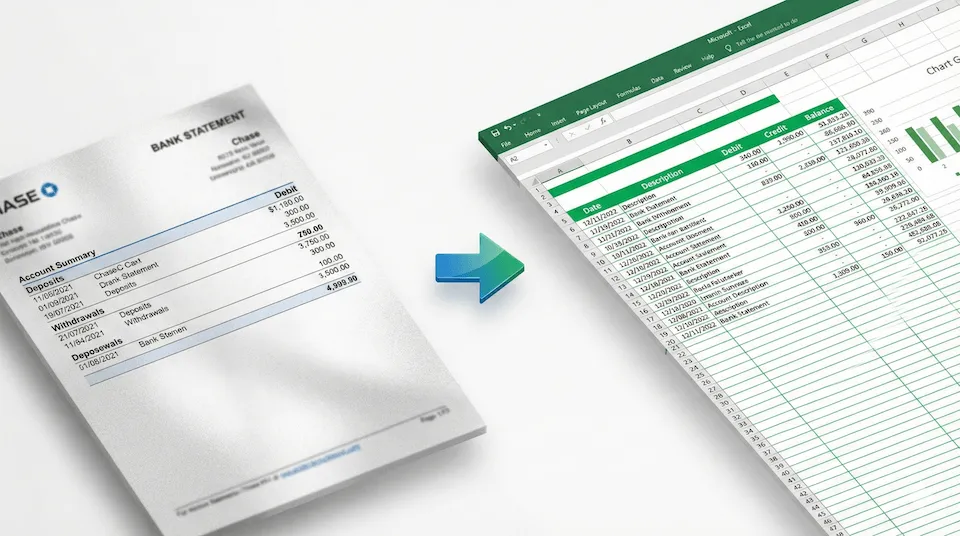 (Unser System funktioniert mit fast jedem Kontoauszugslayout, unabhängig von Sprache oder Region.)
Schritt-für-Schritt-Anleitung: Von PDF zu Excel
Hier ist der genaue Workflow, mit dem Sarah ihr Wochenende gerettet hat.
Schritt 1: Laden Sie Ihre Kontoauszüge hoch
Navigieren Sie zu unserer Startseite. Sie müssen keine Software installieren. Ziehen Sie Ihre PDF-Dateien einfach per Drag & Drop in das Upload-Feld.
- Tipp: Sie können mehrere Dateien gleichzeitig hochladen, wenn Sie 12 Monate Kontoauszüge haben.
Schritt 2: Der Konvertierungsprozess
Sobald die Dateien hochgeladen sind, analysiert unsere Engine die Dokumentstruktur. Sie ignoriert intelligent nicht wesentliche Daten wie den Haftungsausschluss der Bank, Seitenzahlen und Werbebanner. Sie konzentriert sich ausschließlich auf Transaktionsdatum, Beschreibung und Betrag.
Für Benutzer mit gescannten Papierauszügen (Bildern) liest unsere integrierte OCR-Technologie (Optical Character Recognition) den Text automatisch aus dem Bild.
Schritt 3: Laden Sie saubere Daten herunter
Innerhalb von Sekunden ist die Verarbeitung abgeschlossen. Sarah klickte auf “Excel herunterladen”. Als sie die Datei öffnete, war alles in der richtigen Spalte.
- Daten wurden als Datum formatiert.
- Beträge wurden als Zahlen formatiert.
- Beschreibungen waren sauber und lesbar.
Sie schickte die Datei 5 Minuten später an ihren Steuerberater. Krise abgewendet.
Warum uns mit Ihren Daten vertrauen?
Wir wissen, dass Finanzdaten sensibel sind. Im Gegensatz zu einigen generischen PDF-Konvertern, die Ihre Dateien möglicherweise speichern, arbeiten wir nach einer strengen Datenschutz-zuerst-Richtlinie:
- Verschlüsselung: Ihre Datei wird im Moment des Uploads verschlüsselt.
- Kein menschlicher Zugriff: Die Konvertierung ist vollautomatisch; kein Mensch sieht jemals Ihren Kontoauszug.
- Automatische Löschung: Wir löschen Ihre Dateien von unseren Servern sofort nach der Verarbeitung.
Zusammenfassung
Lassen Sie sich nicht von einer PDF-Datei bei Ihrer Geschäftstätigkeit oder Ihrem Kreditantrag ausbremsen. Ob Sie QuickBooks, Xero oder nur eine einfache Tabelle verwenden – die präzise Dateneingabe beginnt hier.
Bereit, Stunden Arbeit zu sparen?
Klicken Sie hier, um Ihren PDF-Kontoauszug kostenlos in Excel umzuwandeln